I spend most of my time on Google sheets. I’ve done so for the past 10 years. So, of course, when they dropped the news of =AI( ) as a formula, I was excited.
Here is the cheapest way to bring the power of AI to Google Sheets.
Create custom function in Google Sheets (like =MYAI(B2)) that calls the OpenAI API (or your favourite AI provider) and returns the result directly in the sheet.
Here is an example:
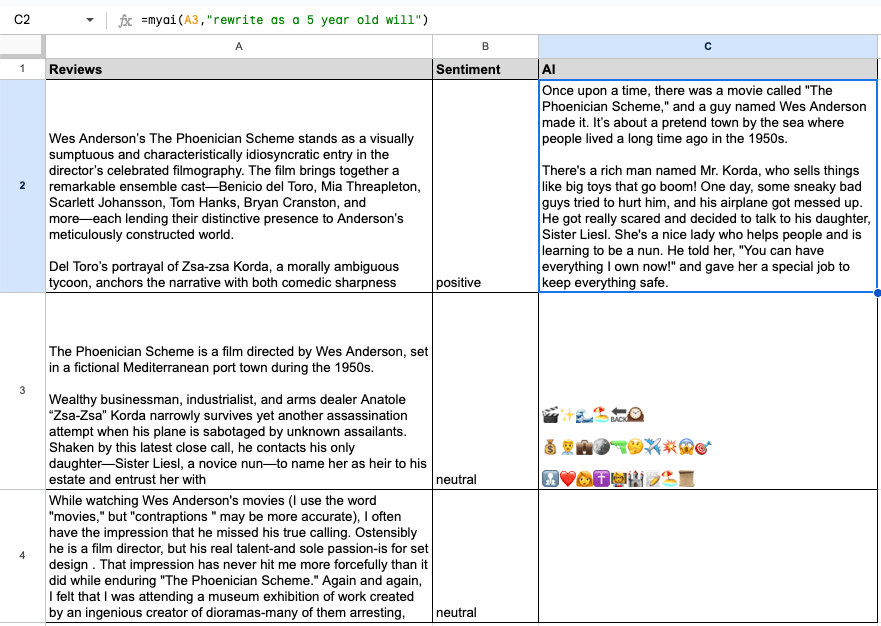
Here I’ve added a function to re-write in the voice of a 5 year old.
And it’s pay as you go.
Here is how you can set it up with OpenAI API
- Before you start you’ll need to have developer access to openAI. Signup https://platform.openai.com/docs/overview and set up your profile and account.
- Then get a new API Key that you can use here
- In your Google Sheet, go to: Extensions → Apps Script
- Delete the default
myFunctioncode and add the below script:
function MYAI(prompt, instruction) {
  var apiKey = "YOUR_API_KEY";
  var url = "https://api.openai.com/v1/chat/completions";

  var payload = {
    model: "gpt-4o-mini", // cheap & fast
    messages: [
      { role: "system", content: instruction },
      { role: "user", content: prompt }
    ],
    max_tokens: 500
  };

  var options = {
    method: "post",
    contentType: "application/json",
    headers: { Authorization: "Bearer " + apiKey },
    payload: JSON.stringify(payload)
  };

  try {
    var response = UrlFetchApp.fetch(url, options);
    var json = JSON.parse(response.getContentText());

    if (!json.choices || !json.choices[0] || !json.choices[0].message) {
      return "No response from AI";
    }
    return json.choices[0].message.content.trim();

  } catch (e) {
    return "Error: " + e;
  }
}
You’ll have to change a couple of things here:
- Add your API Key
- Change the name of the function, in the above example it is “REWRITE” given in the first line
- Change the instruction to the AI
Once all changes have been made:
- Save the file
- Go back to the spreadsheet and use the function
- For adding more functions to the same sheet, add another script file and repeat the process
Got any questions?
 Called Fresh
Leave a comment